

A wireless dash cam can remove the need to handle a memory card whenever you want to review a clip, but it does not remove every cable. In most products, wireless describes how the camera exchanges data with a phone or cloud service. The camera still needs power, and a dash cam front and rear system commonly uses a cable between the two cameras.
This guide separates WiFi, Bluetooth and 4G LTE so you can decide which connection best matches the way you plan to use the camera. It also explains app use, remote viewing, parking access, privacy and ongoing service requirements before you buy a wireless dash cam for your vehicle.
What “Wireless Dash Cam” Actually Means
In dash cam shopping, “wireless” is a connectivity term, not a promise of cable-free installation. A wireless dash camera may create a short-range WiFi connection for a nearby phone, use Bluetooth for limited setup tasks, or connect to a cellular network for remote services. Those functions move data without a physical phone-to-camera cable.
Recording is a separate function. Most cameras write video to a microSD card whenever they have power, even if WiFi or cellular service is unavailable. Likewise, switching off wireless connectivity usually does not stop local recording. Confirm the behavior in the manual for the model you are considering.
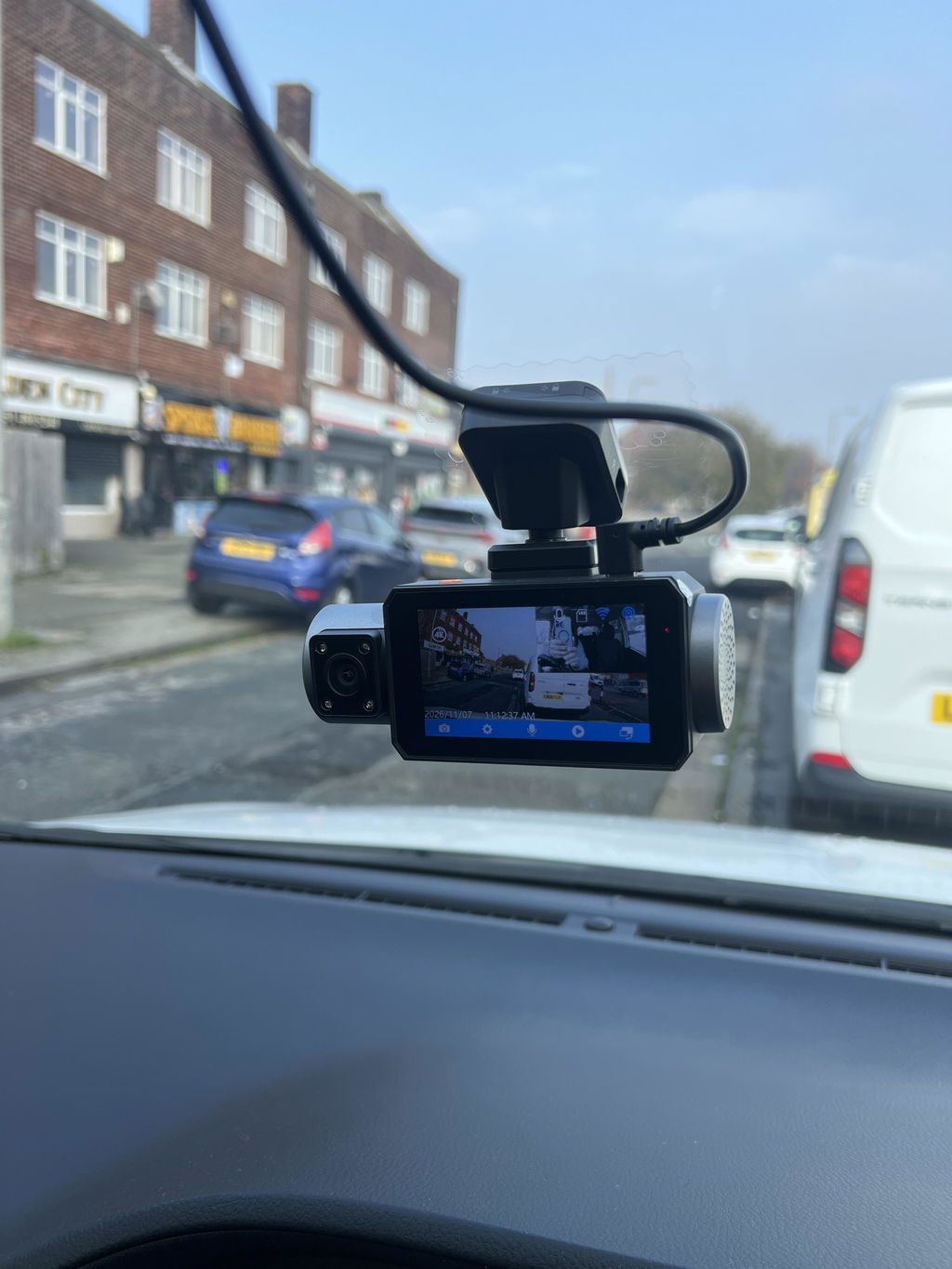
A wireless dash cam front and rear package can still include two important wired paths: power from the vehicle to the main camera and an extension cable from the main unit to the rear camera. Read “wireless” as convenient access to footage, not as a substitute for installation planning.
WiFi, Bluetooth and 4G LTE Serve Different Jobs
The best connection depends on whether you are sitting in the vehicle or miles away from it. These technologies are complementary rather than interchangeable.
| Connection | Typical job | Phone proximity | Ongoing service |
|---|---|---|---|
| WiFi | Live preview, settings and local downloads | Usually nearby | Normally no cellular plan |
| Bluetooth | Discovery, pairing or low-data control on supported models | Nearby | Normally none |
| 4G LTE | Remote live view, alerts, location or cloud functions on supported models | Not necessarily nearby | Usually a data plan |
A WiFi dash cam generally acts as a local access point. You connect the phone to the camera, open the companion app and manage footage while close to the car. This is useful for changing settings or saving a clip after an incident, but it normally does not create an internet connection to a parked vehicle.
Bluetooth Low Energy is designed for low-power data exchange, but each dash cam manufacturer decides how to implement it. On supported models, Bluetooth may assist with device discovery, initial pairing or low-data controls rather than full video downloads. Its exact role varies by model and should not be assumed from a WiFi specification.
An LTE dash cam communicates over a mobile network. With compatible hardware, service and software, that connection can support remote alerts or live access. Cellular connectivity depends on network coverage, account status and service availability in the country where the camera is used.
Which Connections Still Require a Power Cable
Every dash cam needs a power source, whether that comes from a vehicle outlet, USB connection, compatible hardwire kit or an internal battery. Hardwiring is commonly required for parking features because the camera needs a managed source of power after the ignition is turned off.
Front and rear coverage also needs a route for the rear camera cable on most consumer systems. The cable carries video, power or both back to the main unit. Plan where it will pass around trim and airbags, and follow the vehicle manufacturer’s guidance when routing it. Professional installation can be sensible if trim removal, fuse selection or airbag zones are unfamiliar.
“Wireless” therefore reduces friction when retrieving footage. It does not eliminate the need to choose a safe power arrangement, manage cables or protect the vehicle battery. Before enabling parking recording, check whether the hardwire kit provides low-voltage protection and whether its cutoff can be configured for your vehicle.
App Pairing, Downloads and Live View in Real Use
A reliable app connection starts with correct setup. Grant only the phone permissions the app needs, confirm that the camera firmware and app are current, and change any default account credentials. If the phone reports that the camera network has no internet access, that may be normal when the phone is connected directly to a local WiFi dash cam.
Local WiFi is often a convenient way to inspect or download a full-resolution clip while beside the car. Save important files to the phone promptly, because loop recording can eventually overwrite unprotected footage. Download speed depends on the camera’s WiFi hardware, file size, interference and the phone itself.

A live view dash cam can mean two very different things. Local live view works while the phone is connected directly to the camera’s WiFi. Remote live view requires a cellular-capable camera or another internet-connected gateway, a powered camera, working network coverage and an active service. Product pages should state which meaning applies.
Remote Alerts and Cloud Features Away from the Car
Remote access is most valuable when it provides information you cannot retrieve while away from the vehicle. Depending on the model and plan, connected features may include an impact notification, a short event clip, vehicle location, geofence alerts, remote playback or a live feed. Do not assume that one cellular feature guarantees all the others.
Parking alerts are also conditional. The camera must remain powered, its parking mode must be enabled, the event must meet the detection threshold, and the cellular link must be available. An alert is useful context, but it is not a guaranteed real-time security response. Network congestion, weak coverage and the time needed to upload a clip can introduce delays.
Cloud storage can preserve selected footage if the camera or local card is damaged or removed, but policies differ. Check what triggers an upload, whether full-resolution files or shorter event clips are stored, how long they remain available, and what happens when a plan ends.

Privacy, Data Plans and Signal Limitations
A connected camera can hold video, audio, location history and account information. Use a unique password, enable multifactor authentication if the service offers it, install app and firmware updates, and remove access for phones or users that no longer need it. CISA Secure Our World guidance recommends strong passwords, multifactor authentication and current software for connected accounts and devices.
Review the camera’s privacy and retention controls before enabling cloud or location features. Helpful checks include:
- whether audio recording is enabled and complies with applicable consent laws, which vary by state; consult a current state-by-state recording-law guide and confirm the current rules for your location;
- which account members can view footage, location or live video;
- how long cloud clips and trip information are retained;
- how to export evidence and delete data you no longer need; and
- whether remote sessions can be revoked after a phone is lost or sold.
There is no universal data-use figure for cellular dash cams. A brief alert may use little data, while repeated live viewing, remote playback or video uploads can use much more. Resolution, compression, clip length and viewing frequency all matter. Compare the plan’s included service, regional availability and renewal terms, and use the app or account portal to monitor consumption when that information is provided.
Finally, 4G cannot provide remote access where cellular coverage is weak or unavailable. Parking structures, rural roads and other areas with limited or unstable service may interrupt remote functions even while local recording continues. Treat local storage as the primary evidence path and remote connectivity as an additional access layer.
When the GKU C600 Makes Sense
The GKU C600 is a practical fit for a U.S. driver who wants both local WiFi access and remote cellular features in one front-and-rear system. It records 2.5K video at the front and 1080p at the rear, uses dual-band WiFi 6 for nearby viewing and downloads through the GKU LINK app, and offers optional 4G service for remote live view, playback and alerts.
Its 4G service is currently limited to the United States, and remote functions require an active plan, cellular coverage and continuous power. The C600 requires hardwire installation; GKU lists the hardwire kit, rear camera and extension cable, and a 64GB microSD card as included. Standard recording, local WiFi access, GPS route recording and local parking recording can work without the 4G plan.
Choose the GKU C600 4G LTE dash cam if remote access is a real need and hardwiring suits your vehicle. If nearby app downloads are enough, compare the broader GKU wireless dash cam collection before paying for cellular capability you may not use.
Decide Which Wireless Connection Fits Your Needs
Start by identifying when and where you need access to the camera. Choose WiFi if you mainly want to preview the camera, adjust settings and download footage while near the car. Treat Bluetooth as a setup convenience only when the specific model documents it. Choose 4G LTE when you need supported alerts, location or video access while away from the vehicle and are willing to maintain power and data service.
Then verify the installation, not just the app. Confirm the power source, rear-camera cable route, parking-mode requirements, regional cellular support, plan terms and cloud retention. That short checklist will do more for daily reliability than choosing a product because "wireless" appears in its name. When you are ready to compare connected options, explore the GKU website and choose the connectivity and coverage that match your vehicle and parking needs.
FAQs
Q1: Does wireless mean a dash cam can operate without a power cable?
No. To check the installation requirement before buying, review the package diagram for three separate connections: the main power lead, the rear-camera extension cable and any hardwire kit needed for parking mode. On many dash cams, a built-in battery is intended only for brief shutdown or file-saving tasks, so confirm its purpose in the product manual rather than treating it as an all-day power source.
Q2: What is the practical difference between WiFi and cellular connectivity?
WiFi and cellular connections also behave differently on your phone. A direct WiFi connection may display a “no internet” warning because the camera is acting as the local network. Cellular access instead routes through the provider and account service, so troubleshooting should include coverage, plan status and app login as well as the camera itself.
Q3: Can footage be viewed remotely when the car is turned off?
Check whether the selected power circuit remains active after the ignition is turned off and whether the hardwire kit has entered parking mode. If remote viewing fails, verify power first, then cellular signal, plan status, app permissions and account access. Follow the vehicle and kit instructions or use a qualified installer for fuse-box work.
Q4: How much mobile data can connected dash cam features consume?
Use the account portal or app meter, when available, to compare data use before and after a short live-view session. Limit remote viewing to the time needed to assess an alert, and download long or full-resolution clips over local WiFi. This gives you a model-specific estimate without relying on an unreliable universal figure.
Q5: What privacy settings should be checked before enabling remote access?
Before selling the vehicle or transferring the camera, sign out other sessions, remove shared users, disable location and audio features, export any evidence you need, and delete stored clips according to the service controls. Then unpair the camera and confirm that the former account can no longer open a live view or location history.
0 Kommentare